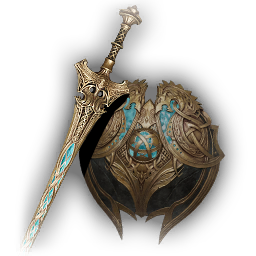
Wulfen Einherjar - OathkeeperSword and ShieldHoly
Equipment Database
Find weapons and armor your class can use, check their attributes and socket options, and compare up to three choices before your next hunt.
Equipment comparisonChoose up to three weapons or armor pieces to compare side by side.
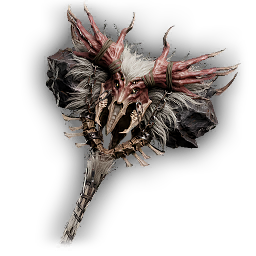
Insatiable Heart - DemolisherWarhammerHoly
Moon Deity - Myriad Soul StaffStaffHoly
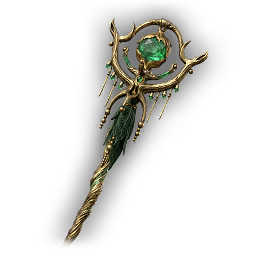
Moon Deity - Convergence StaffStaffHoly
Insatiable Heart - Soulseeker BowBow and ArrowHoly
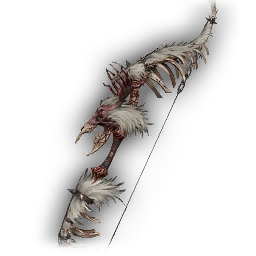
Insatiable Heart - Cornered Beast BowBow and ArrowHoly
Moon Deity - Crescent DaggerDaggerHoly
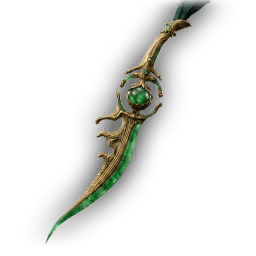
Wulfen Einherjar - SplitclawDual BladesHoly
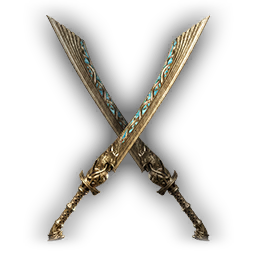
Moon Deity - Souleater CatalystCatalystHoly
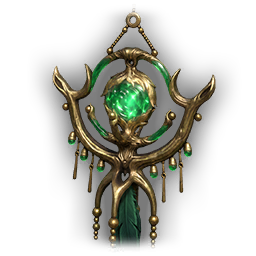
Moon Deity - Invocation CatalystCatalystHoly
Wulfen Einherjar - Warcry SpikeMaceHoly
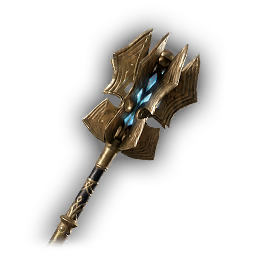
Wulfen Einherjar - Blade of InquisitionGreatswordHoly
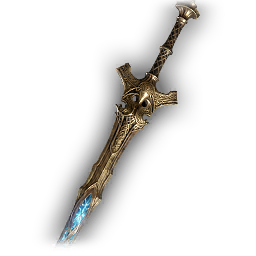
Insatiable Heart - EverburnPolearm and ShieldHoly
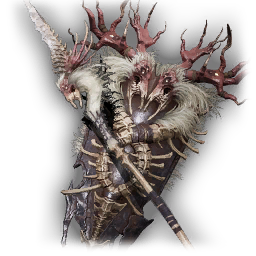
Champion's HelmetHeadLegendary
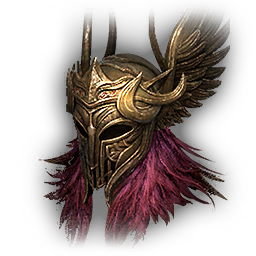
Moon Priestess MaskHeadLegendary

Scaleclaw Winged HelmHeadLegendary

Ace Assassin MaskHeadLegendary
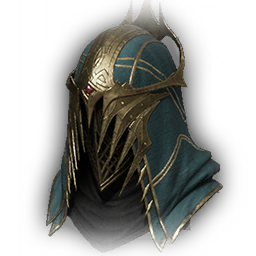
Holy Saint's MiterHeadLegendary

Rosen Oath HelmetHeadLegendary
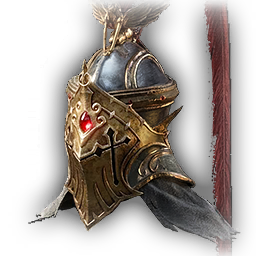
Champion's ArmorClothesLegendary
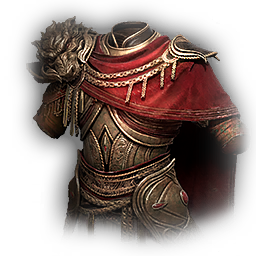
Moon Priestess RobeClothesLegendary
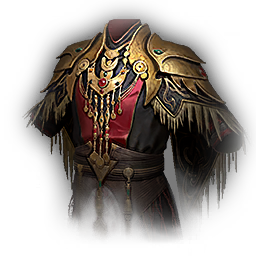
Scaleclaw ArmorClothesLegendary
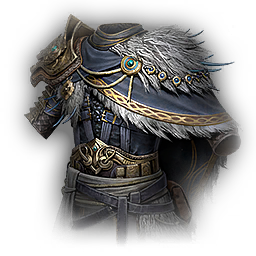
Ace Assassin GarbClothesLegendary
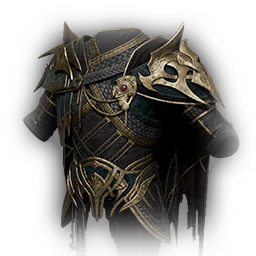
Holy Saint's VestmentClothesLegendary
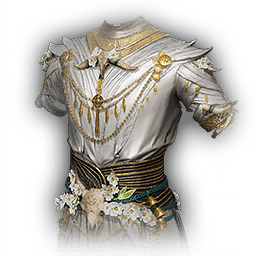
Rosen Oath BreastplateClothesLegendary
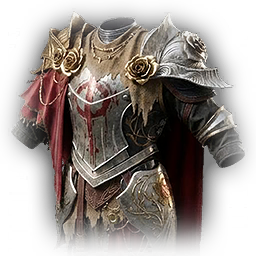
Champion's BracersGauntletsLegendary
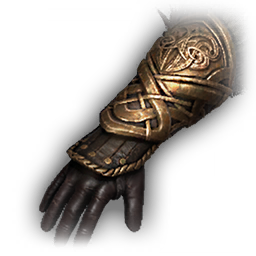
Moon Priestess BracersGauntletsLegendary
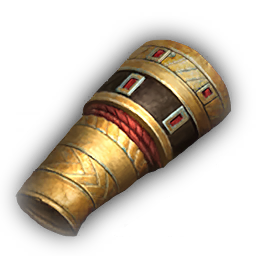
Scaleclaw BracersGauntletsLegendary
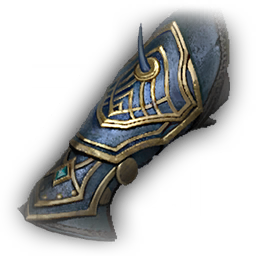
Ace Assassin BracersGauntletsLegendary
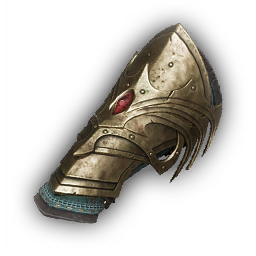
Holy Saint's BracersGauntletsLegendary
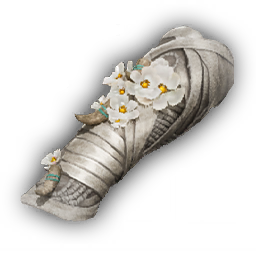
Rosen Oath BracersGauntletsLegendary
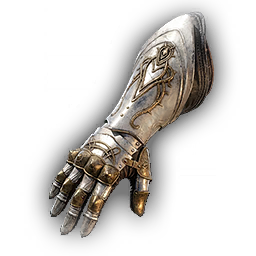
Champion's PantsPantsLegendary
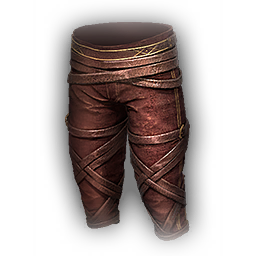
Moon Priestess PantsPantsLegendary
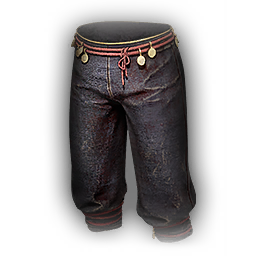
Scaleclaw PantsPantsLegendary
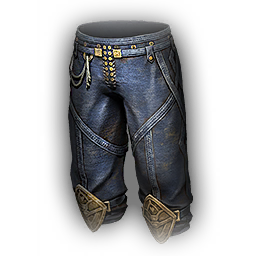
Ace Assassin PantsPantsLegendary
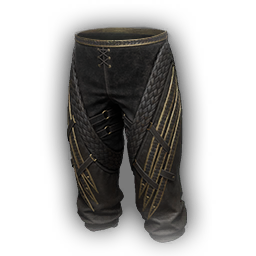
Holy Saint's PantsPantsLegendary
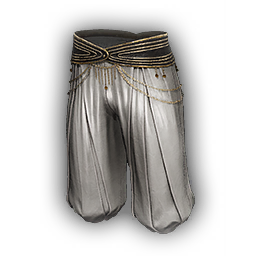
Rosen Oath PantsPantsLegendary
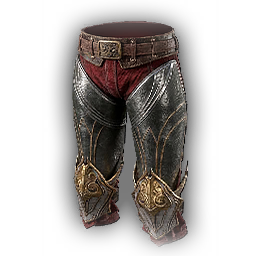
Champion's BootsBootsLegendary
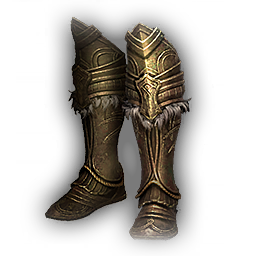
Moon Priestess BootsBootsLegendary
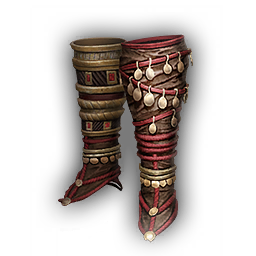
Scaleclaw Leather BootsBootsLegendary
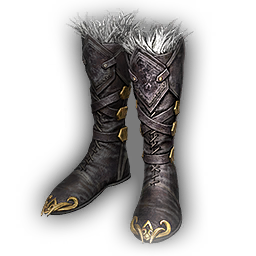
Ace Assassin BootsBootsLegendary
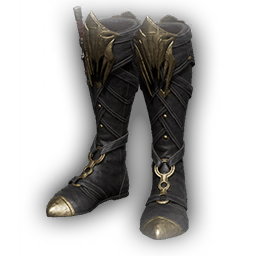
Holy Saint's GreavesBootsLegendary
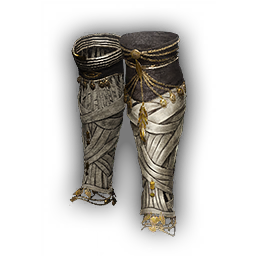
Rosen Oath BootsBootsLegendary
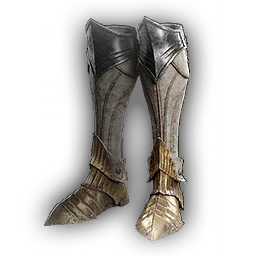
Bond of FriendshipSword and ShieldLegendary
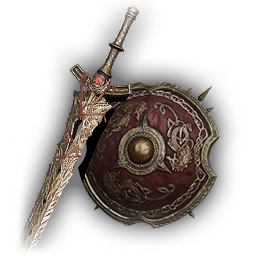
SkullcrusherWarhammerLegendary
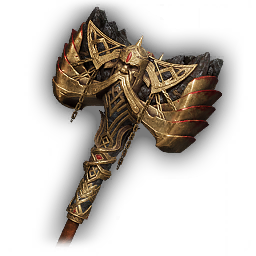
Blind Eye StaffStaffLegendary
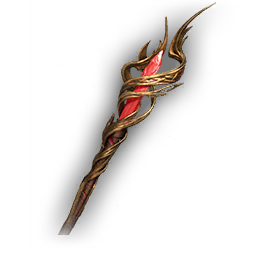
Deathclaw HunterBow and ArrowLegendary

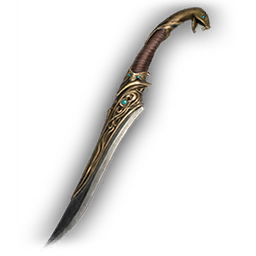
Serpent's WhisperDaggerLegendary
Understand the equipment, then narrow the list
Use this database to build a practical shortlist: first check whether a piece fits your class and slot, then compare what its visible versions provide, and finally review the confirmed ways to obtain it.
How equipment choices fit together
Type, class, rarity and versions
Equipment is divided into weapon families and armor slots. A class restriction tells you who can equip a piece; rarity helps identify its tier, but it does not replace checking the actual attributes and version shown.
One named piece can have a standard version, fixed-affix versions, socket versions, or several of these choices. Treat each displayed row as a distinct option instead of assuming every copy of the same name is identical.
Attributes, affixes and gem sockets
Base attributes describe what the equipment itself displays. Fixed affixes are already attached to that version. A socket is an available place for a compatible affix gem; it is not an active gem bonus until a suitable gem is installed in the game.
Use these rows for comparison, not as a promise of the final combat number. Your full build and the current game state can affect the result, so confirm the finished loadout in the game before spending scarce equipment or gems.
Confirmed acquisition information
The Where to get button appears only when this database has a confirmed source for the piece. The panel uses the official source name and shows an area only when that area is confirmed.
A source without an area means only the source relationship is shown. The list does not claim that every equipment version comes from every source, and a missing button does not prove that the item is unobtainable.
How to use this page
- Search and filter
Search by name, then narrow the results by equipment category, weapon family or armor slot, class requirement, and rarity.
- Read the item tooltip
Hover with a mouse, focus with the keyboard, or tap a card to inspect its description, attributes, class limits, and visible standard, affix, or socket versions.
- Compare up to three pieces
Enable comparison, add as many as three candidates, and open the comparison board to review their requirements, attributes, and version options side by side.
- Check where it comes from
Open Where to get on a supported card. Read the source first, then use only the listed confirmed areas when planning where to look.